
Big Maps
Click on map below to download the Big 4-mile PDF. This is a PDF map of the whole State of Ohio, 28 Mb.
See additional notes below. This view is a small portion of the 4-mile PDF map at Salt Fork:

Click on the picture to download 28 Mb PDF.

Click on map below to download the Big 2-mile PDF. This is a PDF map of the whole State of Ohio, 132 Mb.
See additional notes below. This view is a small portion of the 2-mile PDF map at Salt Fork:

Click on the picture to download 132 Mb PDF.
Click on map below to download the Eastern Ohio Big 1-mile PDF. This is a PDF map of the Eastern two-thirds of the State of Ohio, 318 Mb.
See additional notes below. This view is a small portion of the 1-mile PDF map at Salt Fork:
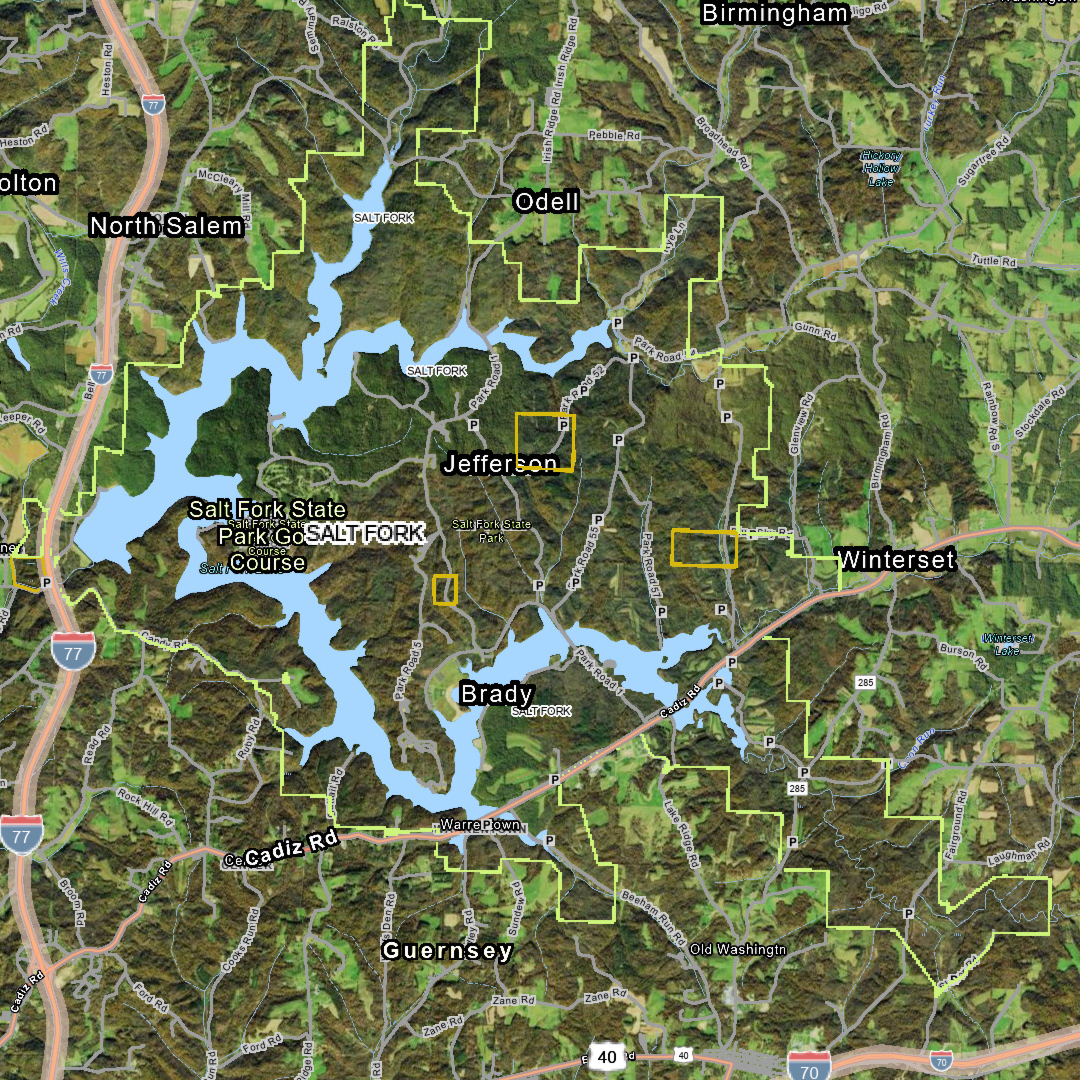
Click on the picture to download 318 Mb PDF.
Additional notes on the Big 4-mile PDF map.
This is a single PDF file at 28 Mb. It will take at least 6 seconds to download and display. A single PDF file is being downloaded onto your device, and then you do not need to download it again. You may need to manually save the file to memory. Some devices will want to discard the file when the tab is closed.
If you click on the picture a second time, your device will ask you if you want to download it again. Click on the filename in the message to open the file that is already there. When you open the PDF that is already on the phone, it will still take a few seconds to load, because it is large. The 4-mile PDF is based on a jpeg picture size of 6350 x 6900.
This map features wildlife areas and parks in green, and they are easy to pick out. This map shows the County lines, County names, major cities, and major roads well. Looking for where Hancock County Wildlife Area 5 is? You can find it pretty fast with this map. The full-size 4-mile map is also shown within the Big 1-mile PDF map.
On a PC, zoom in to 300% or 400% and then move around the map with the mouse scroll wheel for up and down, SHIFT + mouse scroll wheel for left and right, and CONTROL key + mouse scroll wheel for zoom in and out. You want to reset the view to 100% zoom before pressing the browser “Back” button.
On a PC, the file is opened in a new tab and is probably not saved to the PC yet. You can right click on it after it displays, and then save it to the PC.
Additional notes on the Big 2-mile PDF map.
This 2-mile file is a single PDF file at 132 Mb. When you click on the 2-mile picture above with a smartphone, the screen will appear to freeze for about 30 seconds. The large file is downloading in the background. The file will take about 30 to 40 seconds to fully download into the phone’s memory and display. The display is slow to load because it is a very large single picture, 12700 x 13800 pixels at 132 Mb. It will then be on your device. You then have the file downloaded and do not need to do that again.
If you click on the picture a second time, your device will ask you if you want to download it again. Click on the filename in the message to open the file that has already been downloaded.
You may need to manually save the file to memory. Some devices will want to discard the file when the tab is closed.
When you open the 2-mile PDF that is already stored on your smartphone, it will still take about 10 seconds to load from the phone’s memory. The phone will show a white screen until it displays.
On a PC, zoom in to 300% or 400% and then move around the map with the mouse scroll wheel for up and down, SHIFT + mouse scroll wheel for left and right, and CONTROL key + mouse scroll wheel for zoom in and out. You want to reset the view to 100% zoom before pressing the browser “Back” button.
The 2-mile map shows the entire small-road road net in the State of Ohio, just like the 1-mile map does, but in a lower resolution way.
Gas well access paths that are vehicle-inaccessible, gated, dirt, grass, gravel paths, etc., (not roads) are not shown. Only the through roads are shown. A public land access road that is a dead-end gravel road, that can be traversed with a passenger car, will be shown as a small gray road. For clarity, the small gray road lines show the vehicle accessible roads and do NOT show the inaccessible gated gas well jeep paths. Even the USGS Quadrangle maps confuse these and show them as if they were the same.
Additional notes on the Big Eastern Ohio 1-mile PDF map.
The Western Ohio 1-mile PDF and All-Ohio-all-in-one 1-mile PDF are available on the Downloads webpage. Those are 278 Mb and 300 Mb respectively. Most of the public land is shown in the Eastern PDF. The all-in-one PDF of the whole State of Ohio is so large that it may not behave reliably on all smartphones, in the PDF viewer. The Eastern and Western Ohio PDFs can be viewed in a reliable manner on a phone.
The Big Eastern Ohio 1-mile map is a single PDF file at 318 Mb. This file will take at least 90 seconds to download and then display on your device. A single PDF file is being downloaded.
When you click on the picture to start the download, the phone screen may appear to freeze for about 90 seconds. The very large file is downloading. It will take around 90 seconds to fully download and then load into the phone’s memory and display. You then have the file downloaded and do not need to do that again.
If you click on the picture a second time, your device will ask you if you want to download it again. Click on the filename in the message to open the file that has already been downloaded. You may need to manually save the file to memory. Some devices will want to discard the file when it is closed.
When you open the PDF that is already stored on your smartphone, the file will still take around 30 seconds to load from the phone’s memory. It is slow to display because it is loading a very, very large single picture, approximately 17000 x 27600 pixels at 318 Mb.
Again, you may need to manually save the file to memory.
Gas well access paths that are vehicle-inaccessible, gated, dirt, grass, gravel paths, etc., (not roads) are not shown. Only the through roads are shown. A public land access road that is a dead-end gravel road, that can be traversed with a passenger car, will be shown as a small gray road. For clarity, the small gray road lines show the vehicle accessible roads and do NOT show the inaccessible gated gas well jeep paths. Even the USGS Quadrangle maps confuse these and show them as if they were the same.
Additional notes on the Big Maps.
The PDFs are intended to be downloaded and to be stored on the Smartphone, and opened as a file stored on the phone; and not so much as a file that is just opened in a tab in the browser. This is especially true for the Big Map PDFs, and especially for the large 1-mile files. They may render much more slowly if they are not stored on the phone.
The downloadable PDFs are not intended to be the main method of website access for the Big Maps, like for a quick look at an area for a few seconds on the website. The Big Maps cannot be viewed on the website in the normal way other material is. Again, the large PDFs are intended to be stored on the phone, not downloaded for each brief use.
The ODNR’s Hunting Regulations and Areas Interactive Map (https://odnr.maps.arcgis.com/apps/webappviewer/index.html?id=098a0f05e9f04d818b4f06c9e262c4a3) has similar material for normal website access.
When the large PDFs are viewed and downloaded initially, they are often in a state of temporary storage on the phone, or in the browser, and that may affect how they display, and how fast they display. For example, they may be displayed by the browser’s internal PDF viewer, which may not work that well. Save the PDF file to the phone permanently, and open it with a native PDF viewer like “Google Drive PDF viewer”. That will probably work well.
The big files are not intended to be downloaded repeatedly. Download them, keep them, and skip the download next time. The OHM PDFs (Small, Medium, and Large) and the Big Map PDFs are not going to be updated until September 2026. When an updated file is available in 0926, it will have a new name.
On a PC, zoom in to 300% or 400% and then move around the map with the mouse scroll wheel for up and down, SHIFT + mouse scroll wheel for left and right, and CONTROL key + mouse scroll wheel for zoom in and out. You want to reset the view to 100% zoom before pressing the browser “Back” button. This zoom control is changing the browser zoom level that is normally accessed through the Settings controls by pressing the ellipsis button at the top right of the browser.